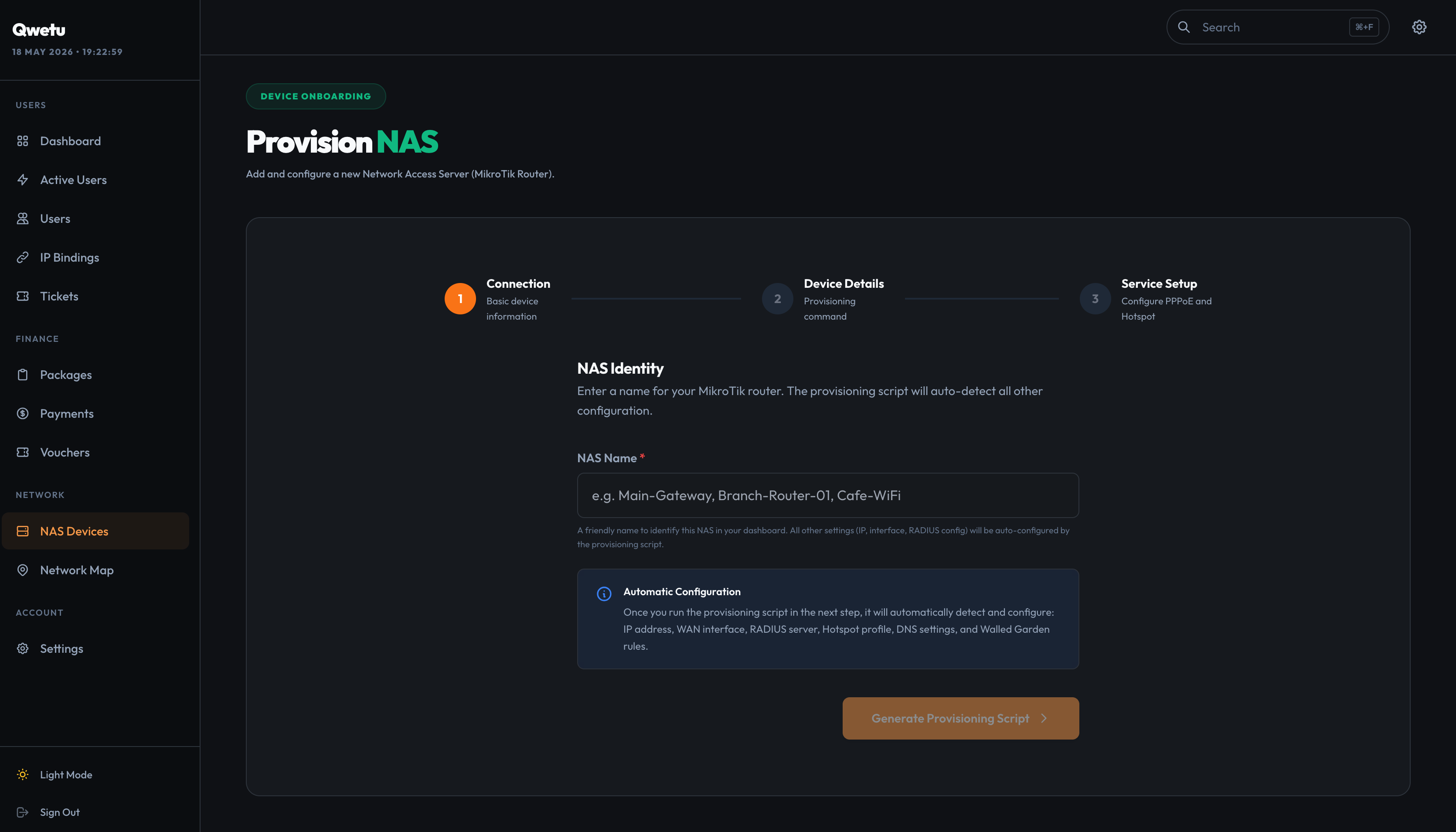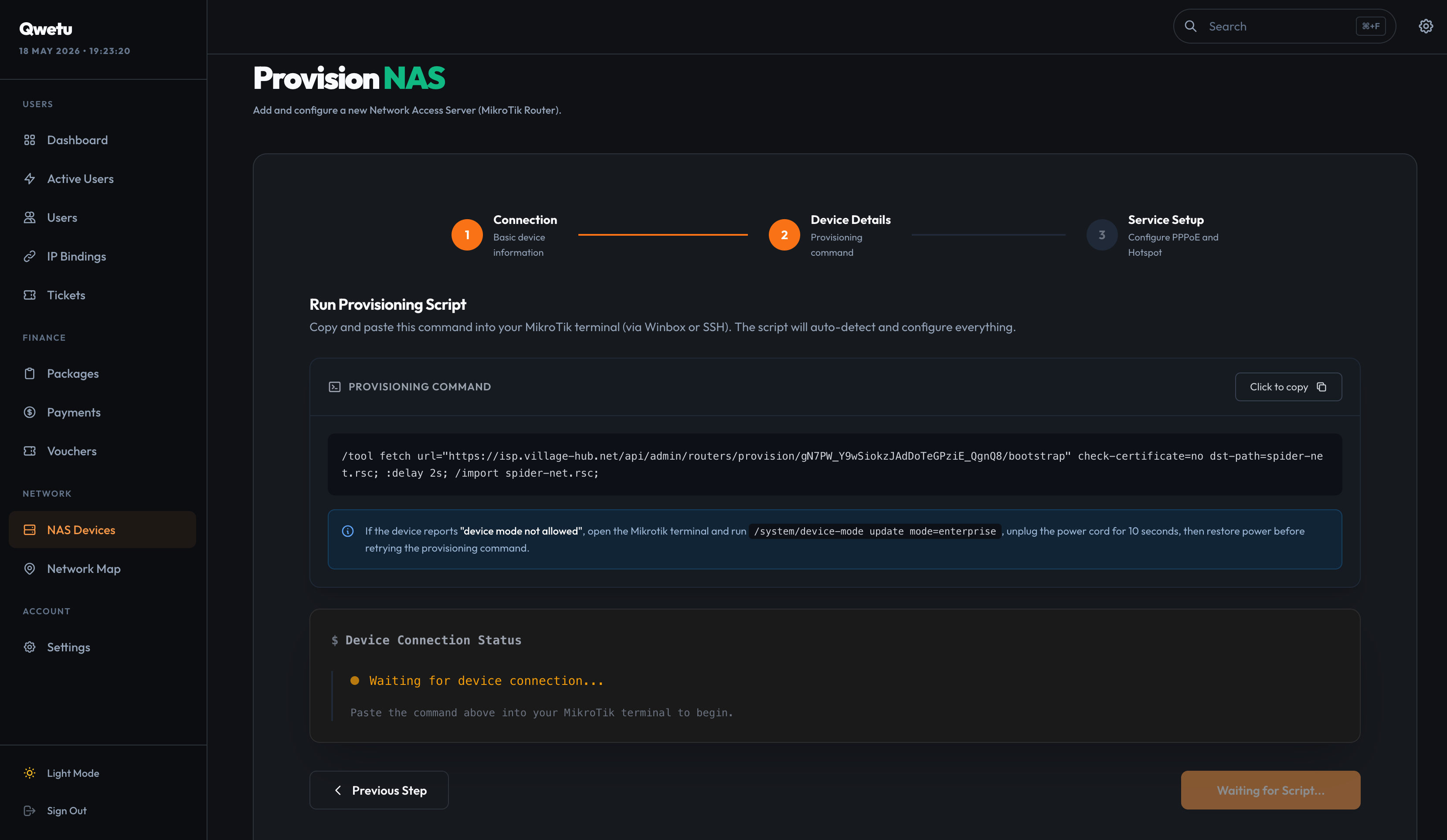
Networking
Adding a Router
Connect your MikroTik router to VillageHub in two steps.
You need a MikroTik RouterOS device connected to the internet and access to your VillageHub Admin Panel.
1
Download Winbox
Winbox is the official GUI application for configuring MikroTik routers. Download the latest version from the official website:
2
Connect and Access Terminal
Connect your computer to the router via Ethernet. Open Winbox, select your router from the Neighbors tab, and click Connect.
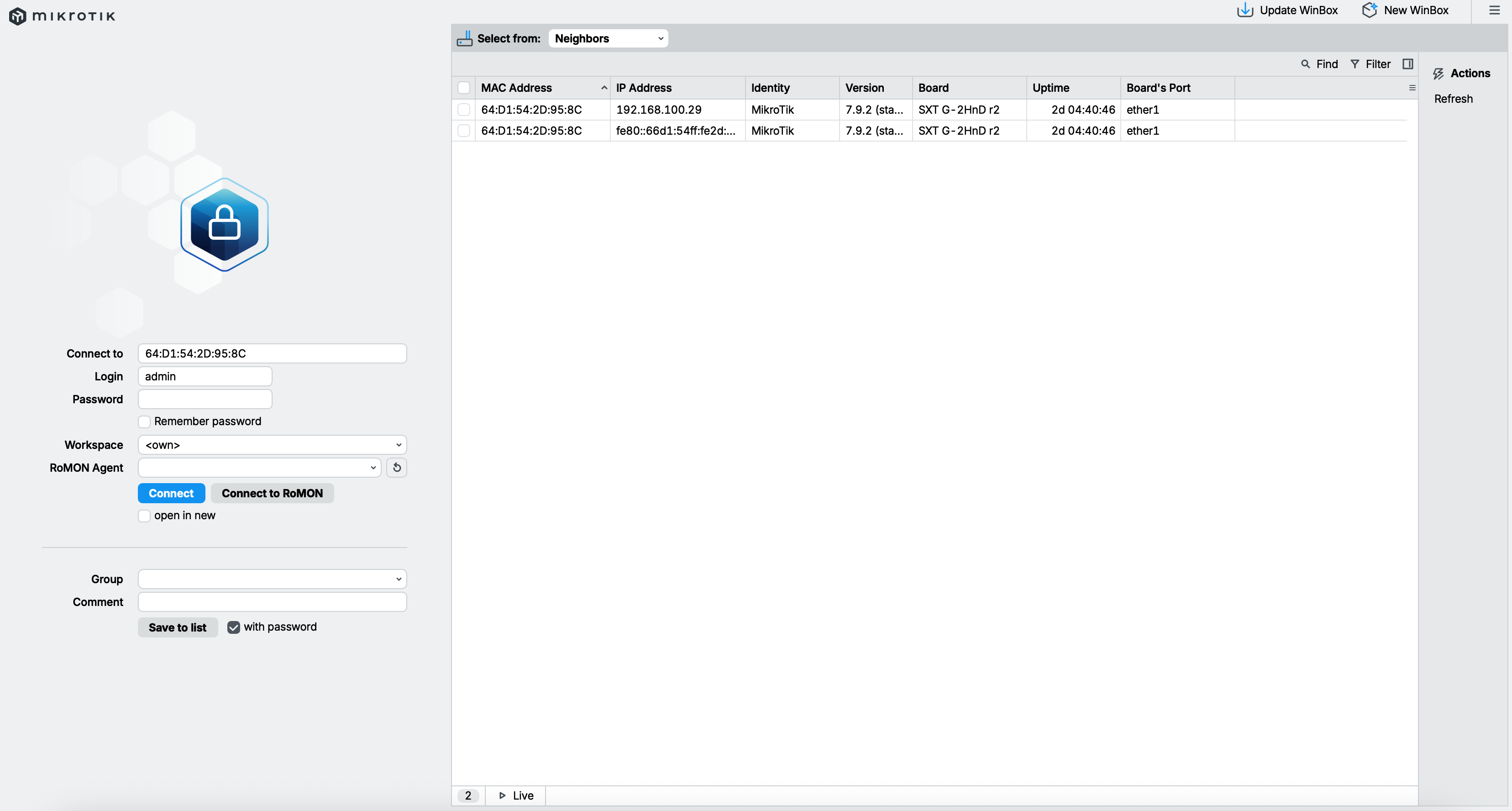
- Default login is usually admin with a blank password.
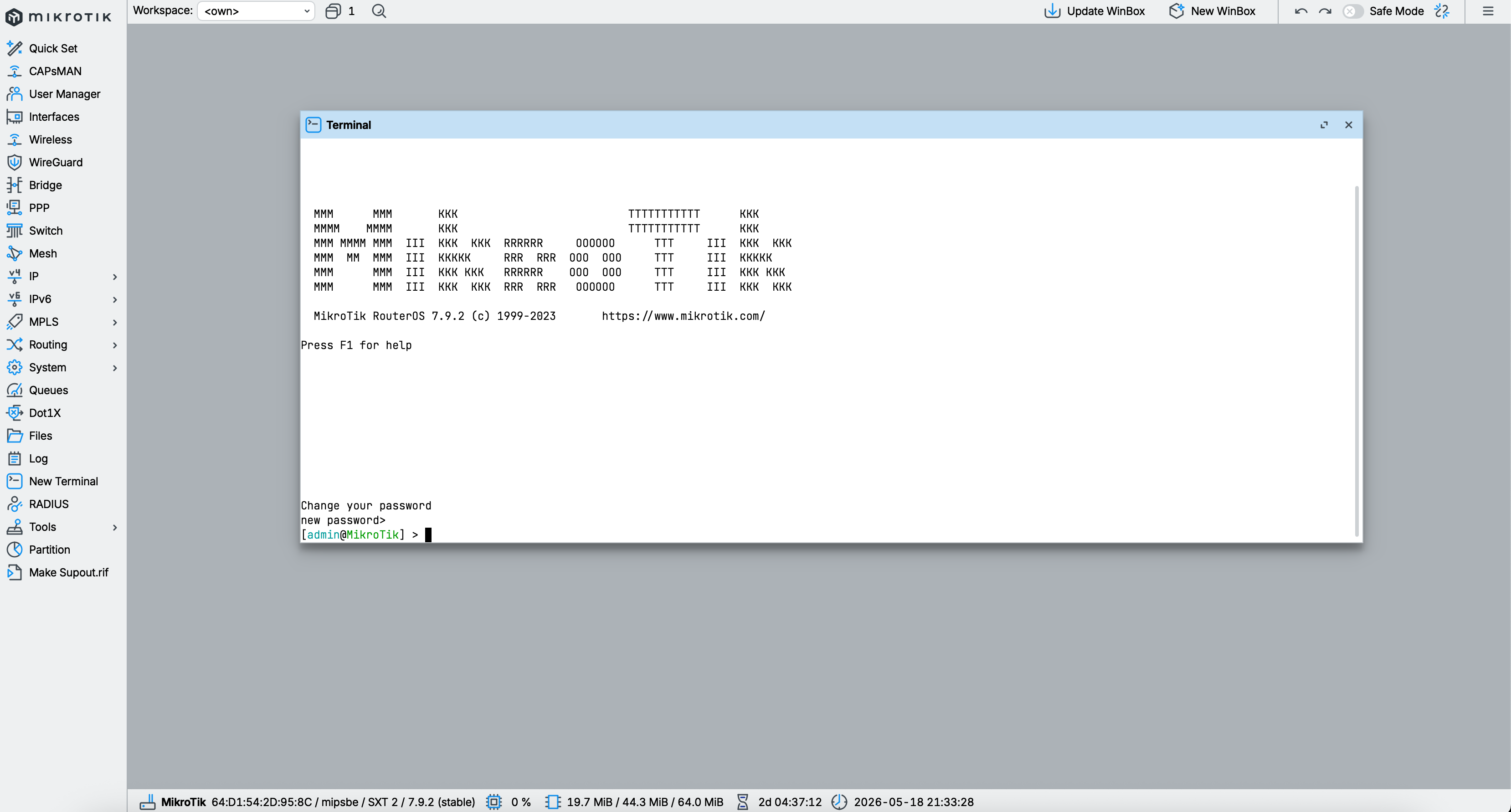
- Once connected, click on New Terminal in the left sidebar to open the command-line interface.
3
Ensure Internet Access
Before linking to VillageHub, your router must have internet access. Ensure you have configured a WAN interface (e.g., via DHCP Client or PPPoE) and that your router can ping an external server.